
130 lines
7.3 KiB
Markdown
130 lines
7.3 KiB
Markdown
---
|
||
page-title: "Prerequisites | Tauri Apps"
|
||
url: https://tauri.app/v1/guides/getting-started/prerequisites
|
||
date: "2023-03-23 10:38:20"
|
||
---
|
||
## Prerequisites
|
||
|
||
## Installing[](https://tauri.app/v1/guides/getting-started/prerequisites#installing "Direct link to Installing")
|
||
|
||
The first step is to install [Rust](https://www.rust-lang.org/) and system dependencies. Keep in mind that this setup is only needed for *developing Tauri apps*. Your end-users are not required to do any of this.
|
||
|
||
### Setting Up Windows[](https://tauri.app/v1/guides/getting-started/prerequisites#setting-up-windows "Direct link to Setting Up Windows")
|
||
|
||
#### 1\. Microsoft Visual Studio C++ Build Tools[](https://tauri.app/v1/guides/getting-started/prerequisites#1-microsoft-visual-studio-c-build-tools "Direct link to 1. Microsoft Visual Studio C++ Build Tools")
|
||
|
||
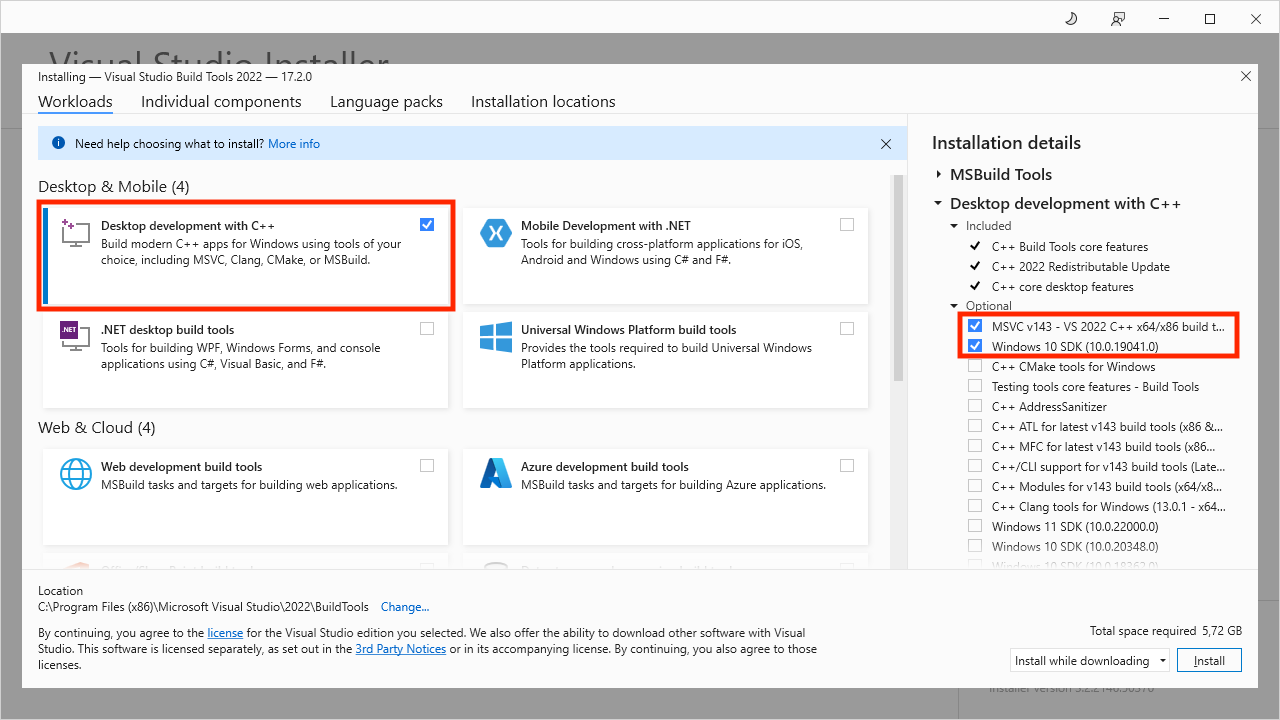
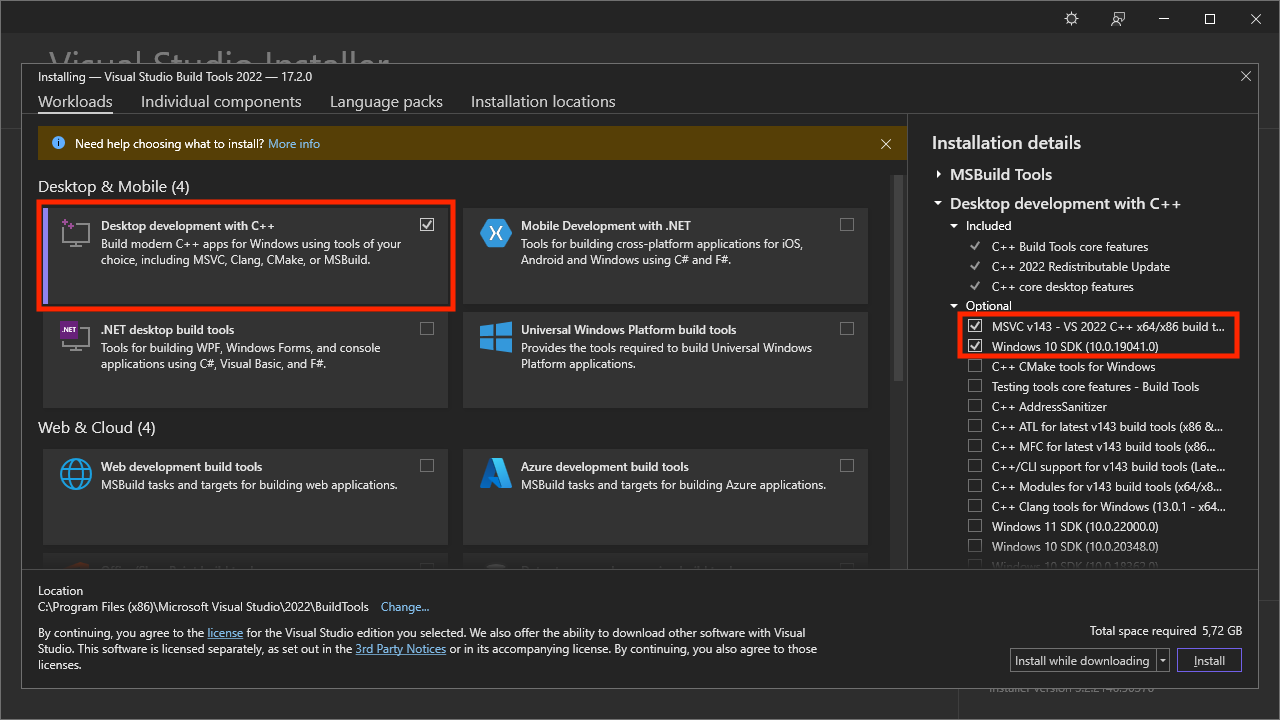
You will need to install Microsoft Visual Studio C++ build tools. The easiest way is to install [Build Tools for Visual Studio 2022](https://visualstudio.microsoft.com/visual-cpp-build-tools/). When asked which workloads to install, ensure "C++ build tools" and the Windows 10 SDK are selected.
|
||
|
||
|
||
|
||
Listing 1-1: Selecting "C++ build tools" and "Windows 10 SDK" using the Visual Studio Build Tools 2022 installer.
|
||
|
||
#### 2\. WebView2[](https://tauri.app/v1/guides/getting-started/prerequisites#2-webview2 "Direct link to 2. WebView2")
|
||
|
||
note
|
||
|
||
On Windows 10 (Version 1803 and later with all updates applied) and Windows 11, the Webview2 runtime is distributed as part of the operating system.
|
||
|
||
Tauri heavily depends on WebView2 to render web content on Windows, therefore you must have WebView2 installed. The easiest way is to download and run the Evergreen Bootstrapper from [Microsoft's website](https://developer.microsoft.com/en-us/microsoft-edge/webview2/#download-section).
|
||
|
||
The bootstrapper script will try to determine the correct architecture and version for your system. Still, if you run into issues (especially with Windows on ARM) you can select the correct standalone installer.
|
||
|
||
#### 3\. Rust[](https://tauri.app/v1/guides/getting-started/prerequisites#3-rust "Direct link to 3. Rust")
|
||
|
||
Lastly, go to [https://www.rust-lang.org/tools/install](https://www.rust-lang.org/tools/install) to install `rustup` (the Rust installer). Note that you have to restart your terminal, and in some cases, Windows itself, for the changes to take effect.
|
||
|
||
Alternatively, you could use `winget` to install rustup using the following command in PowerShell:
|
||
|
||
```
|
||
winget install --id Rustlang.Rustup
|
||
```
|
||
|
||
MSVC toolchain as default
|
||
|
||
For full support for Tauri and tools like [`trunk`](https://trunkrs.dev/) make sure the MSVC Rust toolchain is the selected `default host triple` in the installer dialog. Depending on your system it should be either `x86_64-pc-windows-msvc`, `i686-pc-windows-msvc`, or `aarch64-pc-windows-msvc`.
|
||
|
||
If you already have Rust installed, you can make sure the correct toolchain is installed by running this command:
|
||
|
||
```
|
||
rustup default stable-msvc
|
||
```
|
||
|
||
### Setting Up macOS[](https://tauri.app/v1/guides/getting-started/prerequisites#setting-up-macos "Direct link to Setting Up macOS")
|
||
|
||
#### 1\. CLang and macOS Development Dependencies[](https://tauri.app/v1/guides/getting-started/prerequisites#1-clang-and-macos-development-dependencies "Direct link to 1. CLang and macOS Development Dependencies")
|
||
|
||
You will need to install CLang and macOS development dependencies. To do this, run the following command in your terminal:
|
||
|
||
#### 2\. Rust[](https://tauri.app/v1/guides/getting-started/prerequisites#2-rust "Direct link to 2. Rust")
|
||
|
||
To install Rust on macOS, open a terminal and enter the following command:
|
||
|
||
```
|
||
curl --proto '=https' --tlsv1.2 https://sh.rustup.rs -sSf | sh
|
||
```
|
||
|
||
note
|
||
|
||
We have audited this bash script, and it does what it says it is supposed to do. Nevertheless, before blindly curl-bashing a script, it is always wise to look at it first. Here is the file as a plain script: [rustup.sh](https://sh.rustup.rs/)
|
||
|
||
The command downloads a script and starts the installation of the `rustup` tool, which installs the latest stable version of Rust. You might be prompted for your password. If the installation was successful, the following line will appear:
|
||
|
||
```
|
||
Rust is installed now. Great!
|
||
```
|
||
|
||
Make sure to restart your terminal for the changes to take effect.
|
||
|
||
### Setting Up Linux[](https://tauri.app/v1/guides/getting-started/prerequisites#setting-up-linux "Direct link to Setting Up Linux")
|
||
|
||
#### 1\. System Dependencies[](https://tauri.app/v1/guides/getting-started/prerequisites#1-system-dependencies "Direct link to 1. System Dependencies")
|
||
|
||
You will need to install a couple of system dependencies, such as a C compiler and `webkit2gtk`. Below are commands for a few popular distributions:
|
||
|
||
- Debian
|
||
- Arch
|
||
- Fedora
|
||
- openSUSE
|
||
- NixOS
|
||
|
||
```
|
||
sudo apt updatesudo apt install libwebkit2gtk-4.0-dev \ build-essential \ curl \ wget \ libssl-dev \ libgtk-3-dev \ libayatana-appindicator3-dev \ librsvg2-dev
|
||
```
|
||
|
||
#### 2\. Rust[](https://tauri.app/v1/guides/getting-started/prerequisites#2-rust-1 "Direct link to 2. Rust")
|
||
|
||
To install Rust on Linux, open a terminal and enter the following command:
|
||
|
||
```
|
||
curl --proto '=https' --tlsv1.2 https://sh.rustup.rs -sSf | sh
|
||
```
|
||
|
||
note
|
||
|
||
We have audited this bash script, and it does what it says it is supposed to do. Nevertheless, before blindly curl-bashing a script, it is always wise to look at it first. Here is the file as a plain script: [rustup.sh](https://sh.rustup.rs/)
|
||
|
||
The command downloads a script and starts the installation of the `rustup` tool, which installs the latest stable version of Rust. You might be prompted for your password. If the installation was successful, the following line will appear:
|
||
|
||
```
|
||
Rust is installed now. Great!
|
||
```
|
||
|
||
Make sure to restart your Terminal for the changes to take effect.
|
||
|
||
## Managing The Rust Installation[](https://tauri.app/v1/guides/getting-started/prerequisites#managing-the-rust-installation "Direct link to Managing The Rust Installation")
|
||
|
||
You should keep your Rust version up to date whenever possible to always benefit from the latest improvements. To update Rust, open a terminal and run the following command:
|
||
|
||
`rustup` can also be used to uninstall Rust from your machine fully:
|
||
|
||
## Troubleshooting[](https://tauri.app/v1/guides/getting-started/prerequisites#troubleshooting "Direct link to Troubleshooting")
|
||
|
||
To check whether you have Rust installed correctly, open a shell and enter this command:
|
||
|
||
You should see the version number, commit hash, and commit date for the latest stable version that has been released in the following format:
|
||
|
||
```
|
||
rustc x.y.z (abcabcabc yyyy-mm-dd)
|
||
```
|
||
|
||
If you don't see this information, your Rust installation might be broken. Please consult [Rust's Troubleshooting Section](https://doc.rust-lang.org/book/ch01-01-installation.html#troubleshooting) on how to fix this. If your problems persist, you can get help from the official [Tauri Discord](https://discord.com/invite/tauri) and [GitHub Discussions](https://github.com/tauri-apps/tauri/discussions). |