
3.9 KiB
page-title, url, date
| page-title | url | date |
|---|---|---|
| How to Open Port for a Specific IP Address in Firewalld | https://www.tecmint.com/open-port-for-specific-ip-address-in-firewalld/ | 2024-07-25 21:35:48 |
How can I allow traffic from a specific IP address in my private network or allow traffic from a specific private network through firewalld, to a specific port or service on a Red Hat Enterprise Linux (RHEL) or CentOS server?
In this short article, you will learn how to open a port for a specific IP address or network range in your RHEL or CentOS server running a firewalld firewall.
The most appropriate way to solve this is by using a firewalld zone. So, you need to create a new zone that will hold the new configurations (or you can use any of the secure default zones available).
Open Port for Specific IP Address in Firewalld
First create an appropriate zone name (in our case, we have used mariadb-access to allow access to the MySQL database server).
# firewall-cmd --new-zone=mariadb-access --permanent
Next, reload the firewalld settings to apply the new change. If you skip this step, you may get an error when you try to use the new zone name. This time around, the new zone should appear in the list of zones as highlighted in the following screenshot.
# firewall-cmd --reload
firewall-cmd --get-zones

Check Firewalld Zone
Next, add the source IP address (10.24.96.5/20) and the port (3306) you wish to open on the local server as shown. Then reload the firewalld settings to apply the new changes.
# firewall-cmd --zone=mariadb-access --add-source=10.24.96.5/20 --permanent
firewall-cmd --zone=mariadb-access --add-port=3306/tcp --permanent
firewall-cmd --reload
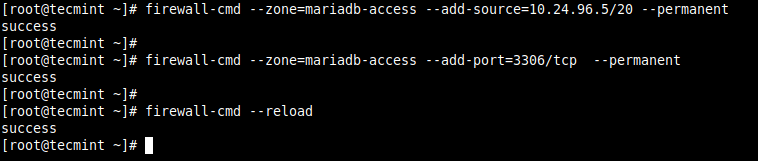
Open Port for Specific IP in Firewalld
Alternatively, you can allow traffic from the entire network (10.24.96.0/20) to a service or port.
# firewall-cmd --zone=mariadb-access --add-source=10.24.96.0/20 --permanent
firewall-cmd --zone=mariadb-access --add-port=3306/tcp --permanent
firewall-cmd --reload
To confirm that the new zone has the required settings as added above, check its details with the following command.
# firewall-cmd --zone=mariadb-access --list-all
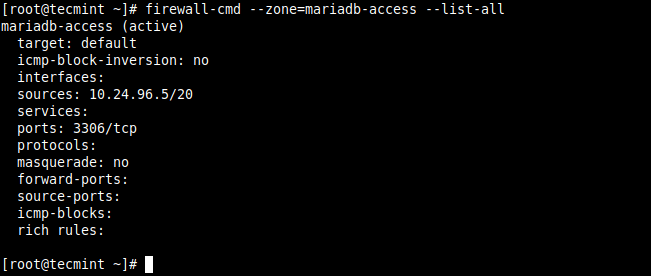
View Firewalld Zone Details
Remove Port and Zone from Firewalld
You can remove the source IP address or network as shown.
# firewall-cmd --zone=mariadb-access --remove-source=10.24.96.5/20 --permanent
firewall-cmd --reload
To remove the port from the zone, issue the following command, and reload the firewalld settings:
# firewall-cmd --zone=mariadb-access --remove-port=3306/tcp --permanent
firewall-cmd --reload
To remove the zone, run the following command, and reload the firewalld settings:
# firewall-cmd --permanent --delete-zone=mariadb-access
firewall-cmd --reload
Last but not list, you can also use firewalld rich rules. Here is an example:
# firewall-cmd --permanent –zone=mariadb-access --add-rich-rule='rule family="ipv4" source address="10.24.96.5/20" port protocol="tcp" port="3306" accept'
Reference: Using and Configuring firewalld in the RHEL 8 documentation.
That’s it! We hope the above solutions worked for you. If yes, let us know via the feedback form below. You can as well ask questions or share general comments about this topic.